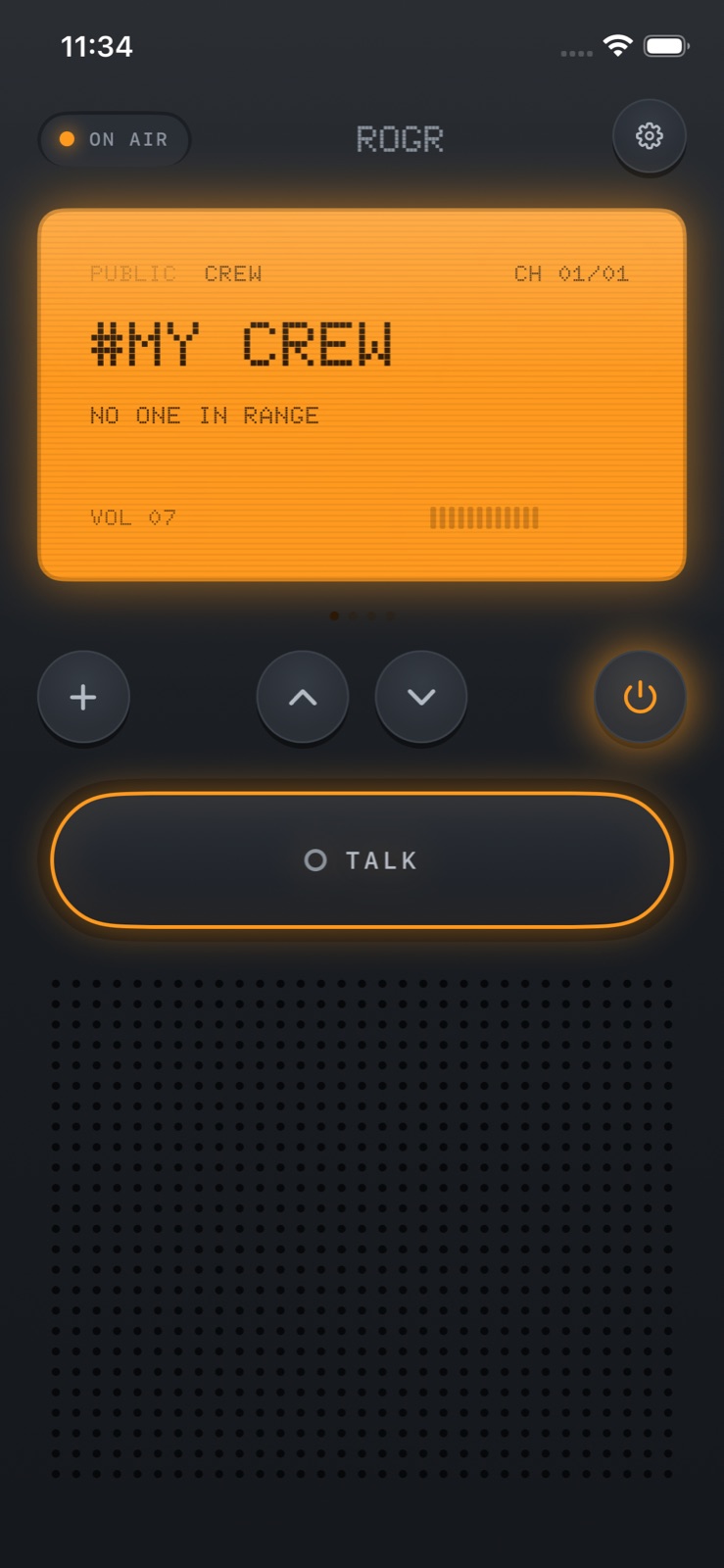
Rogr works in airplane mode. Airplane mode turns off Wi-Fi and Bluetooth along with cellular, but iOS lets you re-enable those two radios individually from Control Centre — and Rogr needs only them. Once they're on, Rogr connects between phones as normal. No internet access is involved at any point.
This follows from how Rogr is built. Voice, crew messages, and positions travel directly between phones using peer-to-peer Wi-Fi and Bluetooth — the same radio stack that AirDrop uses. Two iPhones with those radios on can reach each other device to device with no network in the middle. Airplane mode on its own does not break that link; only leaving the radios off does.
How to set it up
Turn on airplane mode from Control Centre or Settings. You will see the Wi-Fi and Bluetooth icons dim. Tap Wi-Fi in Control Centre to bring the radio back on — you do not need to join any network, just have the radio active. Then tap Bluetooth to do the same. Open Rogr. The app connects to crew members and works normally.
Pairing works the same way. Bump phones together or share the crew code verbally. The one pairing option that needs a data connection is sending an invite link through the iOS share sheet — that send goes through the network, so it will not work while airplane mode is cutting connectivity. Bumping phones together and sharing the code verbally do not.
When this matters
The situations where a group switches to airplane mode are often the same situations where Rogr is most useful.
A ski day where everyone turns airplane mode on between runs to save battery. A hiking trip in an area where mobile coverage drops an hour from the trailhead. A backcountry camping weekend where the nearest tower is too far to connect. A concert or festival where the cell towers are saturated and every app is crawling. In each of these, ordinary messaging becomes unreliable, and Rogr keeps working.
Nothing in the app routes through a server. Voice, the location data Find uses, and the SOS alert all travel peer-to-peer between the phones in your crew. There is nothing to time out, no server to become unreachable, no service to go down. The only thing that can stop Rogr from connecting two phones is the phones themselves being out of range of each other.
This is a deliberate design choice. Most push-to-talk apps route audio through a server — it is simpler to build. The cost is that the app fails when the network fails, which is often when you need it most. Cell towers get overloaded at events. Coverage disappears in hills and valleys. An indoor venue can be a dead zone. Rogr made a different choice, with the tradeoff that range is tens of metres rather than kilometres.
Airplane mode is not a workaround or a special case for Rogr. It is exactly the kind of situation the app was designed for.
Testing before you leave
Rogr's onboarding includes a radio check. Hold the talk bar, and you hear your own voice played back through the connection. It confirms the link is live before you rely on it.
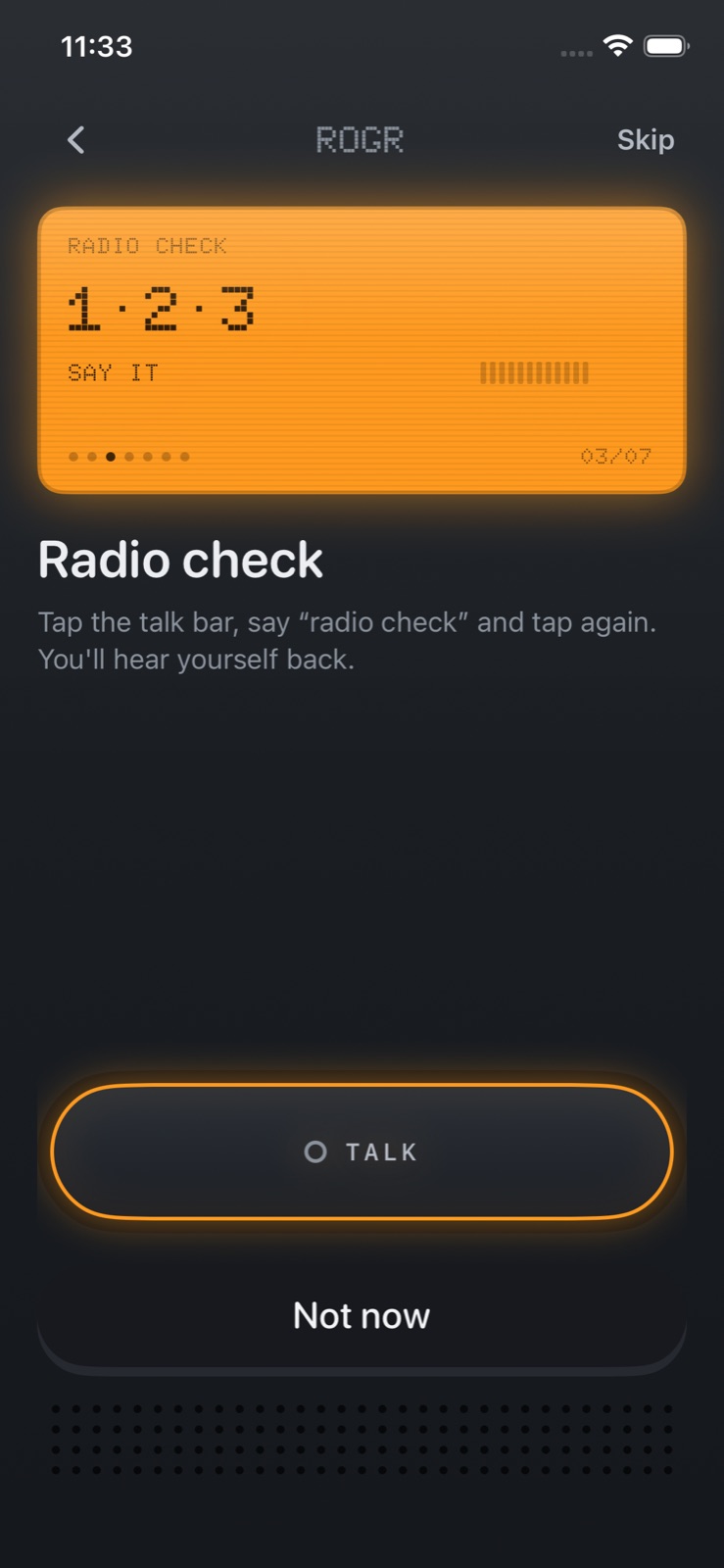 The radio-check step: hold the talk bar, and hear yourself back through the live link.
Running through this before a trip — especially one where phones will be in airplane mode — takes a moment and rules out the common problems early: a radio that is accidentally off, phones too far apart during setup, a pairing that didn't complete. Catching those at home is considerably easier than catching them on a slope.
If you are setting up a group, it is worth having everyone confirm the radio check on the same crew before departing. Each phone that hears itself back is a phone whose link is confirmed.
Range
Airplane mode has no effect on range. Rogr's range is determined by the peer-to-peer Wi-Fi and Bluetooth hardware in the iPhones and the environment between them: tens of metres in open air with a clear line of sight, less through walls and dense crowds. Those are properties of the radios, not of internet connectivity. Switching to airplane mode does not reduce range; having weaker radios or more obstruction does.
Battery saver
Rogr keeps a low-power link open in the background so crew members can reach you without you having the app foregrounded. A battery-saver mode lowers voice quality and reduces how often your position is shared. On a long day outdoors where you want to preserve battery without turning the radio off entirely, it is worth enabling. The power key in the app turns the radio off completely when a session is over.
What the post is not saying
Rogr is not designed for kilometre range. Tens of metres in open air is what the peer-to-peer radios in an iPhone deliver, and the app says so rather than overstating it. For communication over longer distances or through dense terrain, a dedicated two-way radio with a proper antenna is the right tool. Rogr covers the group-coordination use case: close enough that walking over is realistic, but far enough or noisy enough that shouting is not.
That said, "tens of metres" covers a ski run, a hiking group spread across a trail, a crew at a festival, and a family at a campsite. For those situations, airplane mode is not a limitation — it is the normal operating condition.
Rogr is coming soon to the App Store. Find out more at rogr.xeve.io.