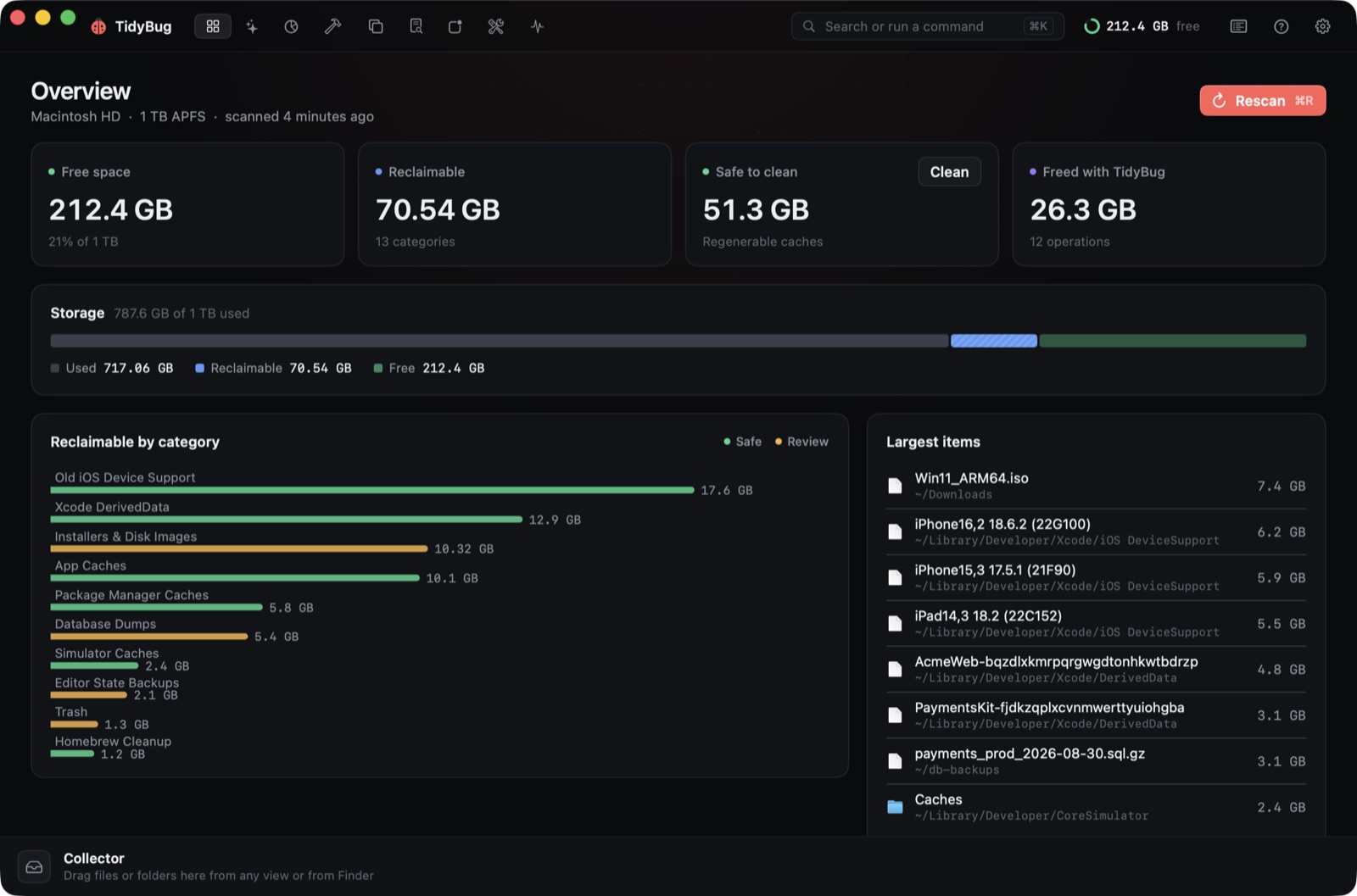
If your Mac is running low on storage and you're a developer, the culprits are almost always the same: Xcode's build cache, iOS device support files, node_modules, Docker or OrbStack containers, and package manager caches. The hard part is knowing which ones you can safely delete without breaking your environment.
Here's how to think about each one, and how TidyBug handles the safety question automatically.
The usual suspects
Xcode DerivedData is the biggest offender for iOS and macOS developers. Every project you build adds to it, and Xcode never cleans it up on its own. The whole folder is regenerated on the next build, so deleting it is always safe — your projects compile fine, the first build just takes a bit longer.
iOS and iPadOS DeviceSupport files sit alongside DerivedData. Xcode downloads one for every device-and-OS combination you've ever plugged in. If you've been developing for a few years and upgraded test devices regularly, you have files in there for iOS versions nobody runs any more. Everything from your currently-connected devices upward is worth keeping; the rest can go.
node_modules is trickier. The rule is: it's safe to delete if package-lock.json, yarn.lock, or pnpm-lock.yaml is in the same directory, because npm install will restore it. Without a lockfile, you have no reliable way to restore the exact same packages. TidyBug's Projects scanner only surfaces node_modules folders where it can confirm a lockfile exists — the same logic applies to .venv, Pods and Gradle targets.
Package manager caches accumulate in the background. npm, pip, uv, Gradle, and Yarn all keep downloaded packages on disk to speed up future installs. These are always safe to delete — clearing them just means the next install hits the network instead of the cache.
Docker and OrbStack VMs can be large. Running docker system prune removes stopped containers, dangling images and unused volumes. TidyBug shows the exact command it will run rather than issuing it silently, so you can see what's about to happen before it does.
Installers in Downloads are easy to overlook. .dmg, .pkg, .iso, and .xip files from months or years ago add up, especially if you re-download a macOS installer every year. Once an app is installed, the installer file serves no purpose.
What you should not delete
Some locations look reclaimable but aren't:
~/Documents,~/Desktop, and iCloud Drive — your own files~/.ssh— your SSH keys.gitdirectories inside projects — your version history- Photos libraries
- Signed archives (
.xcarchive,.ipa) if you're still distributing from them
TidyBug keeps a protected-path list covering all of these. They never appear in scan results, regardless of size.
Two ways to find what's taking space
The quickest approach is TidyBug's Clean tab, which checks all nineteen junk locations and pre-selects only the ones that can be regenerated. Nothing moves until you confirm, and items go to the Trash rather than being permanently deleted by default.
For everything outside that list — your own project folders, old repositories, videos, raw files — the Space view draws an interactive sunburst of any folder you point it at. Sizes are hardlink-aware, so a pnpm store isn't counted once per project that references it: it shows its real footprint on disk.
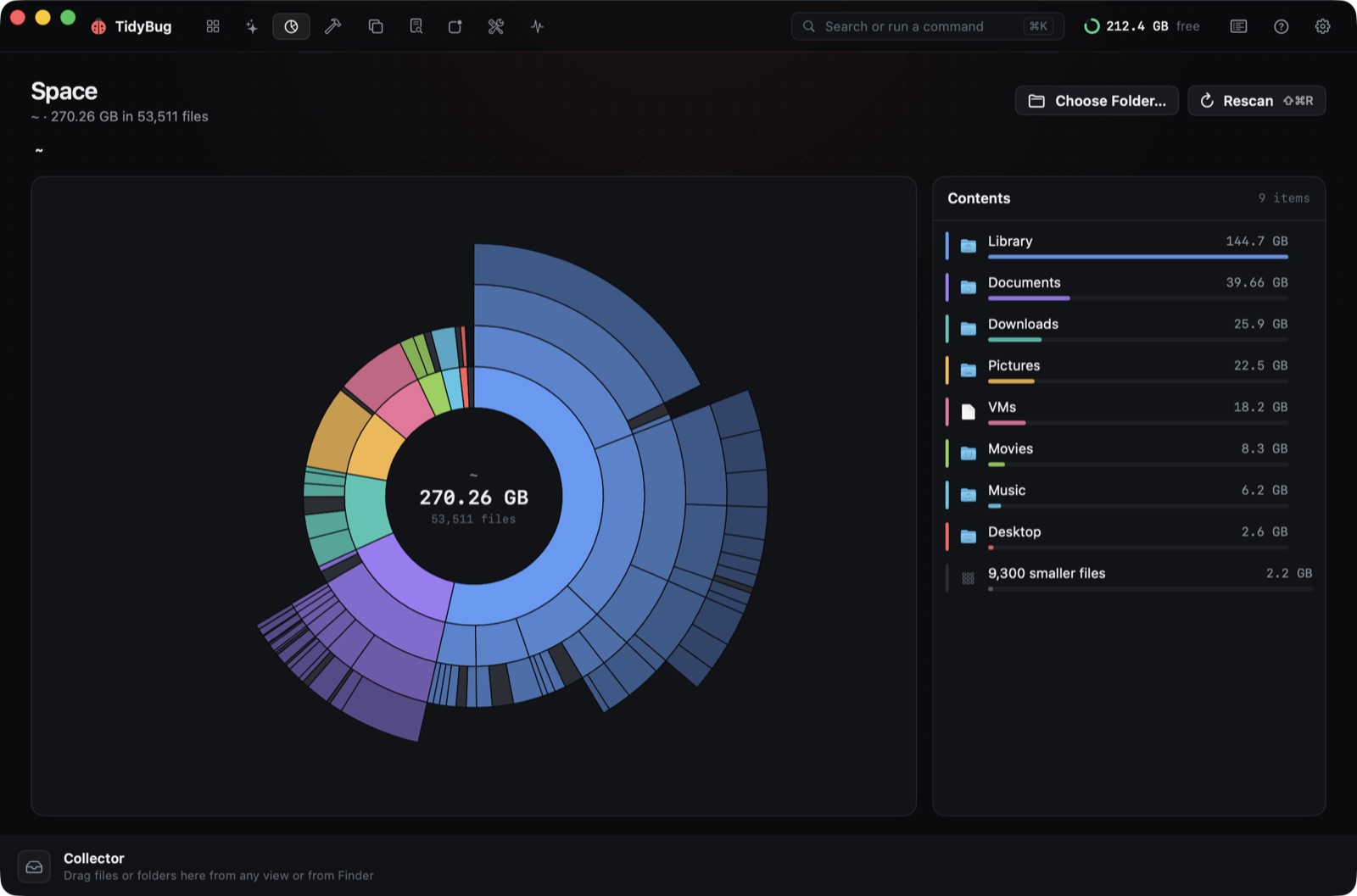 Space shows where the large folders are. Click any segment to drill in.
The Collector
Nothing moves until you're ready. As you work through each tab — the Clean results, the Space map, the Large Files list, the duplicate finder — you add items to the Collector, a staging strip at the bottom of the window. When you're done browsing, you review the whole list and move everything to the Trash in one go.
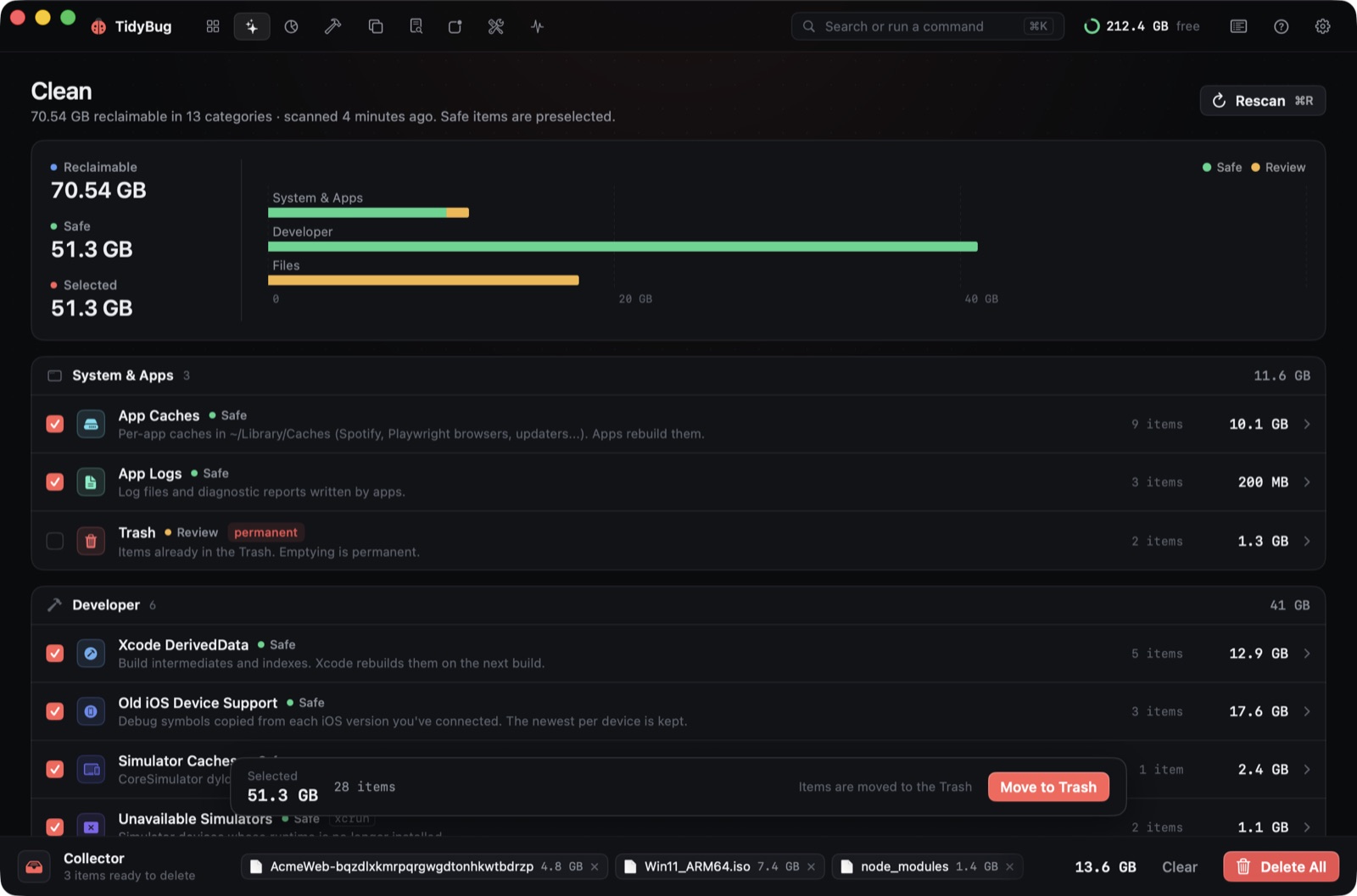 The Collector holds items from every tab until you're ready to remove them.
Permanent deletion is an opt-in toggle in the Collector, not the default. If you accidentally add something, it goes to the Trash and you can restore it.
The menu bar
TidyBug also sits in the menu bar: free space, CPU and memory at a glance, and a one-click button to clean safe items without opening the main window. It's useful as a regular check-in; the main window is where you do the deeper work.
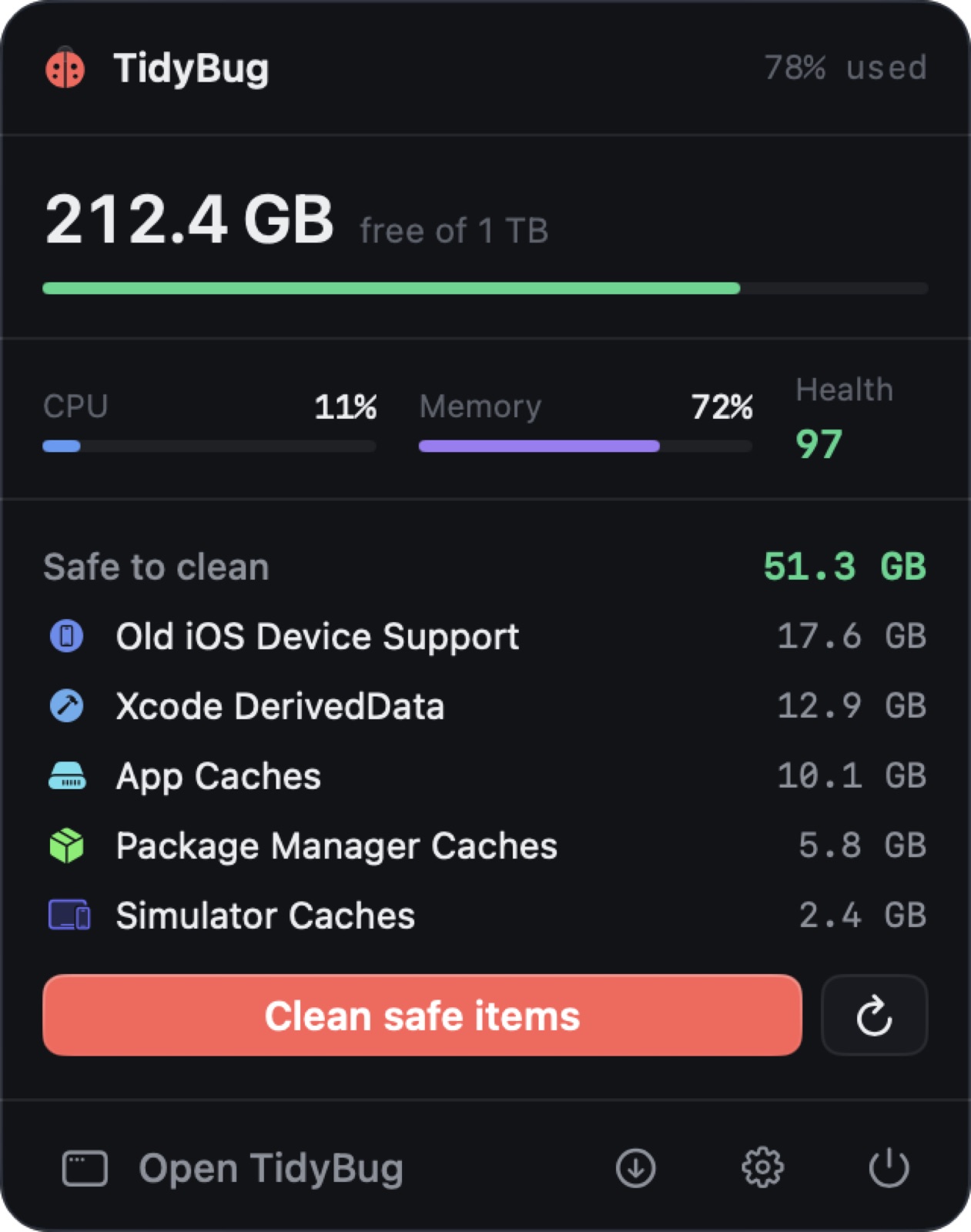 The menu bar shows available disk space and system stats at a glance.
Free and open source
TidyBug is free, open source under GPL-3.0, and notarized by Apple. It runs on macOS 26 on Apple silicon and Intel, with no telemetry. The source is at github.com/xeveio/tidybug.
If your Mac's storage is filling up and you want to know exactly where it's going before deleting anything, start with TidyBug — the Clean tab will show you the safe wins in under a minute.