By late afternoon on the day we built Gobbl, the hard parts were done. The notch loaded, the pet moved, dictation transcribed, Memory was reading the screen. What remained was a different kind of work: making the app trustworthy enough for a stranger to download and clear enough for them to understand what they were getting.
The last three prompts of the session covered that.
Settings that didn't open
The first problem arrived when we went to test settings before going live. The window didn't appear. Not an error, not a hang — it simply did nothing.
nthing happens when i try to open settings
On macOS 14 and later, the standard SwiftUI mechanism for opening a Settings window — the showSettingsWindow: action — is silently ignored when it comes from an accessory app without a Dock icon. It only fires when triggered by a SwiftUI SettingsLink. Gobbl lives in the notch and opens settings from a menu bar button, not from a SettingsLink, so the action went nowhere on every supported machine.
The fix was to build the window directly. Gobbl now has its own SettingsWindow type that creates an NSWindow backed by an NSHostingController and calls makeKeyAndOrderFront(_:) on it. It also calls NSApp.activate(ignoringOtherApps: true) first, because without a Dock icon the window would open behind whatever was in front. The full type is about twenty lines; the comment at the top says exactly why the standard route doesn't work, so no one discovering the code later has to rediscover the bug.
A settings window that does nothing is one of those bugs that a project tested on a single developer's machine might never see, but that every real user hits in the first minute. It had to be fixed before 0.1.0 went anywhere.
Screenshots without anyone's data
A notch app has a particular problem with screenshots. You can't show the notch in a browser mockup, and screenshotting a real notch on a real Mac means your own music, calendar events and files end up in the images. This prompt asked for something cleaner:
add screenshots of the notch if possible so that users know what they get when they download
The solution was a --demo flag. When Gobbl starts with --demo, it calls DemoData.load(), which replaces the live shelf, calendar, agents tab and chat with neutral sample content, in memory only. Nothing gets saved. The music in the home tab is "Weightless" by Marconi Union. The shelf holds files named "Q3 deck.pdf" and "Trip itinerary.pdf". The calendar has a "Design review" coming up with a Zoom link.
The album artwork for the track is drawn in code: a soft gradient from blue to coral with a white oval in the centre. It isn't borrowed from the real album, because using a real album cover in marketing screenshots without a licence is a problem.
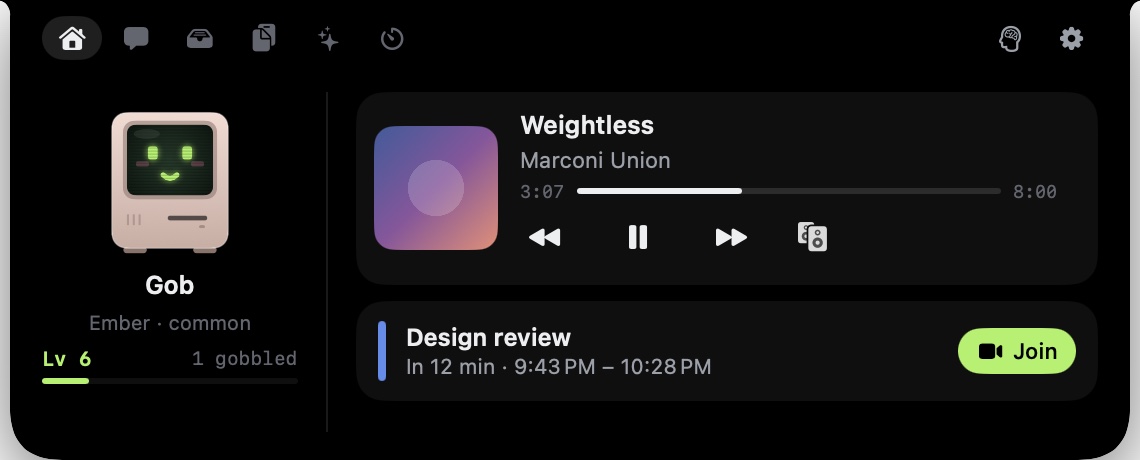 The home tab: a track playing, Gob the pet, and a meeting coming up.
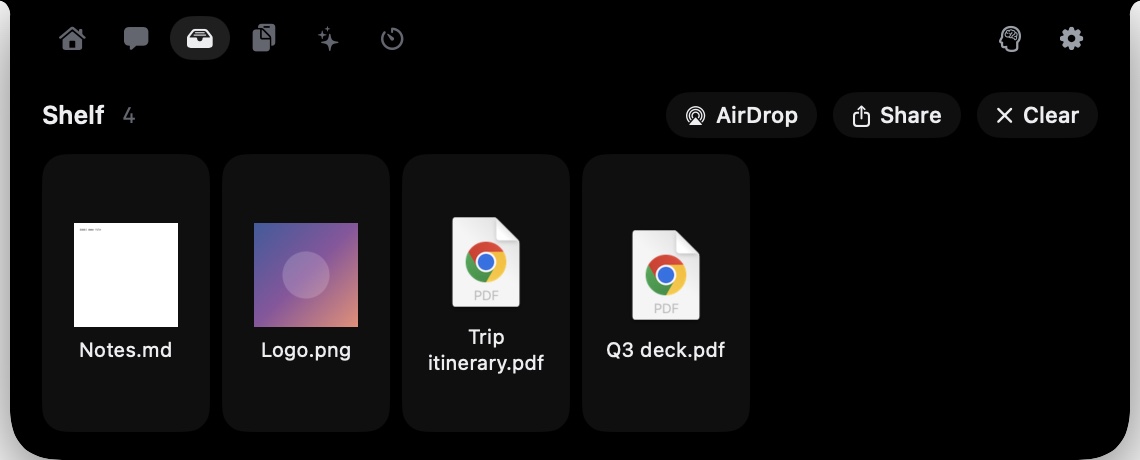 The file shelf: four dropped files and AirDrop, Share and Clear buttons.
Every screenshot on the Gobbl website that shows the notch from the outside was taken with this flag. None of them contain real data.
Notarization and auto-updates
The final prompt:
lets pubish notarized released with auto updates
Notarization is what macOS's Gatekeeper checks when someone opens a downloaded app. Apple's notary service scans the binary and issues a ticket, which gets stapled to the app. When you open it, Gatekeeper reads the ticket before anything runs. Without it, Gatekeeper shows an error that reads as "this app is damaged" or "cannot be verified" — not a useful first impression for a free download from a developer the user has never heard of.
Auto-updates use Sparkle 2. On launch, Gobbl starts Sparkle's scheduler with a single line in applicationDidFinishLaunching: _ = Updater.shared. From there Sparkle checks a feed URL from Info.plist and, when it finds a newer version, downloads and installs it. Every release in the feed is signed with an EdDSA key, and Sparkle verifies the signature before applying the update. The public key lives in Info.plist; the private key stays off the device. Settings shows a short note at the bottom of the Updates section: "Updates are signed and notarized, and verified with Gobbl's EdDSA key before installing." That sentence is the full security model.
The final stretch
Most of Gobbl's build day was about features: the pet's character, dictation, Memory, the Gobbl key. The last push before version 0.1.0 went live was smaller: a bug fix, a flag, and a framework. None of it was technically complicated, but each piece mattered. A settings window that doesn't open, a screenshot that shows your calendar, an app that macOS won't run — any one of those would have made the release worse. The release script handled notarization and Sparkle signing without manual steps, and the download was live before the day was out.
Gobbl is free and open source for macOS 14 and later. Download it at gobbl.xeve.io and read the code at github.com/xeveio/gobbl.