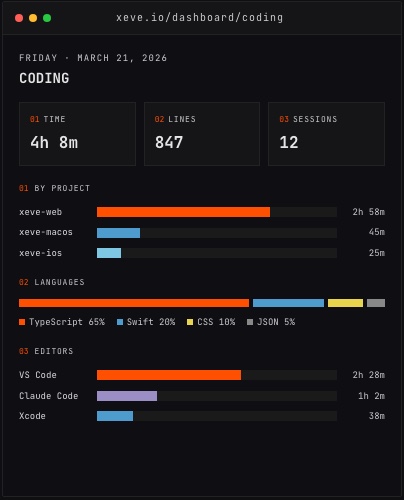
To track coding time automatically, install the Orma VS Code extension or Claude Code hook. Both capture active editing time in the background, broken down by project and language, without any timers or manual logging. Data appears in the Orma dashboard within minutes of the first session.
Here is how each piece works and what the data shows.
The VS Code extension
The extension works with VS Code and Cursor. After installing and signing in, it sends a heartbeat to Orma each time you make an edit — the current project name (derived from the root folder open in the editor), the language of the file, and the timestamp.
Active time is different from "VS Code is open" time. If you spend 20 minutes reading a pull request in the browser while your editor sits idle, those 20 minutes do not count as coding time. Only the intervals where you are actively editing are included. Sessions with no edits for more than two minutes are treated as idle and excluded from the total.
This is the distinction that makes the numbers useful. Developers consistently estimate their coding time higher than it actually is, because "working in VS Code" and "writing code" feel like the same thing from the inside. The heartbeat approach separates them without requiring any input from you.
The Claude Code hook
Claude Code is a terminal-based coding agent, not an editor — it does not emit extension heartbeats. Orma provides a separate shell-based hook that integrates with Claude Code's session lifecycle and captures the time you spend in agent sessions.
The hook is a short script that lives in your Claude Code configuration. It fires when a session starts and ends, and sends a heartbeat with the project context. If you use Claude Code alongside VS Code for the same project, both sources of time appear in the same project row on the coding dashboard.
For developers who work primarily through Claude Code for long stretches — running an agent, reviewing its output, directing the next step — this is the only way to count that time accurately. Without the hook, those hours disappear from your coding record entirely.
Native editor detection
Beyond the extension and hook, the Orma desktop app detects editors at the operating system level as part of its general app tracking. On macOS and Windows, it recognises active time in Xcode, iTerm2, Warp, Terminal, and other development tools. These sessions appear in the coding dashboard under their editor name.
This is useful when your work spans multiple environments: a morning in VS Code, an afternoon session in Xcode for an iOS fix, a late terminal session. All of it contributes to the daily coding total.
What the coding dashboard shows
The coding view in Orma (formerly xeve) brings all these sources together. At the top: a daily and weekly active coding total. Below that, a breakdown by project — every folder that appeared in a heartbeat becomes a line in the chart. Then by language, and by editor.
Sessions are also visible at hourly resolution, so you can see when in the day your coding is most concentrated. If you tend to do deep work in the morning and get pulled away by communication in the afternoon, the chart shows that pattern without you having to do anything to produce it.
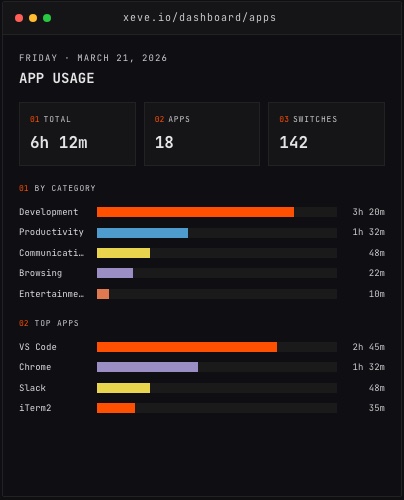
The app usage view, where coding appears as one of the tracked categories alongside communication, browsing and the rest.
One thing the coding dashboard measures is time, not output. Commits, pull requests and code reviews are a separate integration — they appear on the GitHub activity page and tell you what that time produced. Both views are worth having: time tells you about effort, commits tell you about results, and the relationship between the two shifts in ways that are hard to notice without tracking both.
Correlations
Coding time becomes more interesting when it sits next to other data. Orma automatically computes 19 correlations between the metrics it collects — whether your coding output tends to be higher on days you slept longer, whether it drops on high-meeting days, whether heart rate patterns from a Bluetooth monitor relate to focus periods in your editor.
You do not configure these correlations. They are computed from your history and updated as more data accumulates. After a few weeks of tracking, the patterns that are real for you specifically emerge from the noise. The AI weekly digest in the dashboard summarises what changed in the previous week and what patterns are strengthening.
Getting started
The setup takes a few minutes. Install the Orma app for your platform (macOS or Windows) from orma.xeve.io, sign in, and download the VS Code extension or set up the Claude Code hook from the integrations page. Coding data starts appearing in the dashboard as soon as the first session completes.
Orma is free during early access. There is no credit card and no limit on how much you can track. The desktop app, VS Code extension, Claude Code hook, and iOS companion are all included.
Tracking coding time does not change how you work. It just makes visible what was already happening — which projects are absorbing your time, which languages and editors you actually use, and how those patterns shift from week to week. That data is useful precisely because it comes from observation rather than memory.