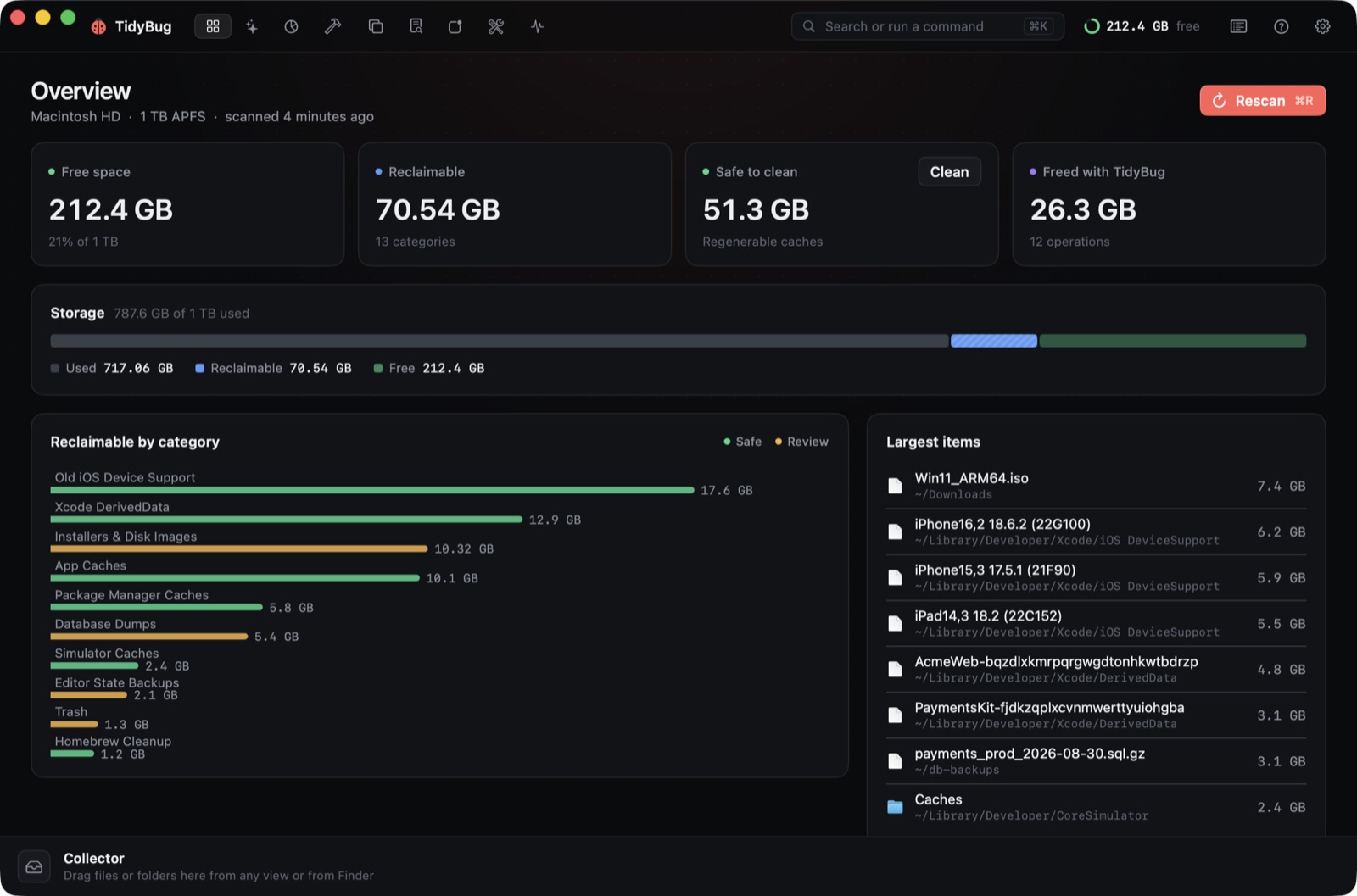
Running out of disk space on a Mac as a developer is almost never about your actual work files — it is the build artifacts, package caches, container VMs and old installers that accumulate silently over months. Most of it is regenerable: every byte can be deleted and recreated when you need it again, so recovering the space costs you nothing but a slower first build afterward.
Where the space actually goes
Developer Macs carry four main categories of clutter that grow without any obvious prompt:
Build artifacts. Xcode's DerivedData folder grows with every build. If you target multiple iOS versions or switch between simulators, device support files pile up alongside it. Swift package caches add more. With active Xcode development, DerivedData is often the single largest deletable folder on the machine, and it rebuilds automatically on the next build.
Package manager caches. npm, pip, uv, Gradle and Yarn all maintain download caches on disk. They speed up reinstalls while you are actively working with a project, but they serve no purpose once you have moved on. Each tool stores its cache in a different place, which makes it easy to lose track of how much space they collectively hold.
Container VMs. Docker and OrbStack each keep their virtual machine as a single large file on disk. Stopped containers, old images and unreferenced volumes accumulate inside the VM until you explicitly prune them. A VM that started at a few gigabytes tends to grow over time and almost never shrinks on its own.
Old installers. macOS disk images, .pkg files, Xcode .xip archives and other installers that land in Downloads stay there until you delete them. They are easy to overlook because they sit outside your project folders, but an Xcode .xip alone can run to several gigabytes.
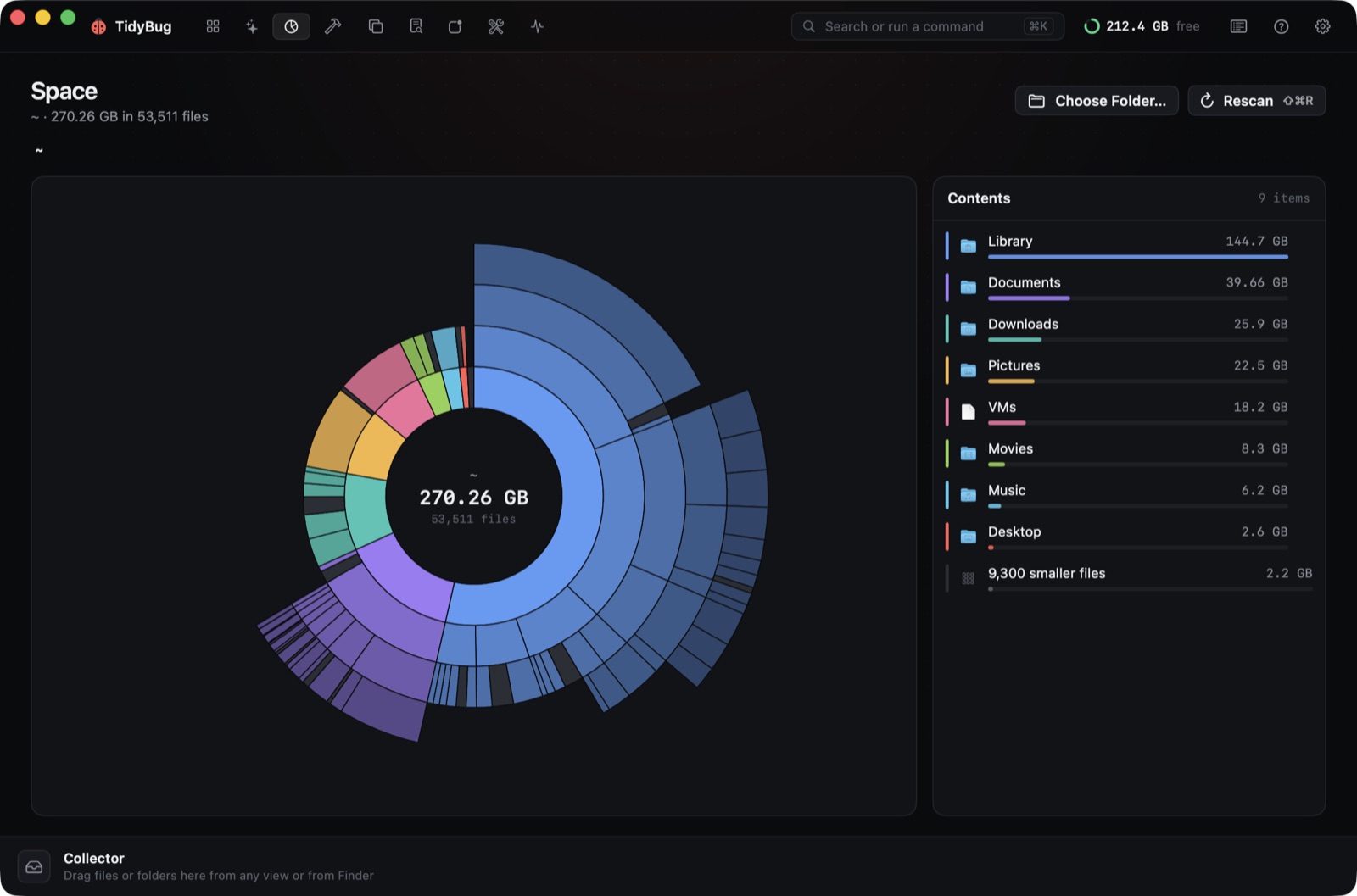 The Space tool shows where your disk is going, with hardlink-aware sizes so pnpm stores are not double-counted.
Why manual cleanup is tedious and easy to get wrong
Clearing each category by hand is straightforward in principle — there are known paths and known commands — but tedious in practice. Package manager caches live in a different location for every tool. Docker's prune commands are spread across images, containers and volumes. Old project folders with large build artefacts are scattered across wherever you cloned things a year or two ago.
There is also a real safety risk. Cleanup guides often suggest rm -rf on paths that, depending on your setup, can contain things you did not intend to remove. Moving items to the Trash first means you can undo a mistake; rm -rf does not give you that option.
What TidyBug does
TidyBug is a free, open-source macOS app (GPL-3.0) that scans nineteen places where developer junk accumulates — Xcode DerivedData and device support, package caches across npm, pip, uv, Gradle and Yarn, Docker and OrbStack VM data, and installers in Downloads — and pre-selects only what is regenerable.
The scanner is read-only. Everything it suggests can be moved to the Trash with a few clicks, and nothing is deleted permanently by default. Every action is logged. Protected paths — ~/Documents, ~/Desktop, iCloud Drive, Photos, .git, ~/.ssh and signed archives — are excluded automatically.
TidyBug has nine tools in total. Clean runs the full parallel scan. Space is an interactive sunburst map of any folder, with hardlink-aware sizes, so a pnpm content-addressed store is not double-counted the way a plain du would count it. Projects finds node_modules, .venv, Pods, target directories and other build artefacts — but only in folders where a lockfile exists to restore them, so it will not flag a dependency folder it cannot regenerate. Duplicates finds byte-identical files by SHA-256 hash, and also similar photos through Vision. Apps is a full uninstaller that finds preferences, caches and launch agents left behind by apps that are already deleted. Large and old files surfaces big items above a threshold: ISOs, database dumps, archived repos. Optimize shows maintenance tasks such as flushing DNS and rebuilding Quick Look indexes, with a preview of the exact commands before anything runs.
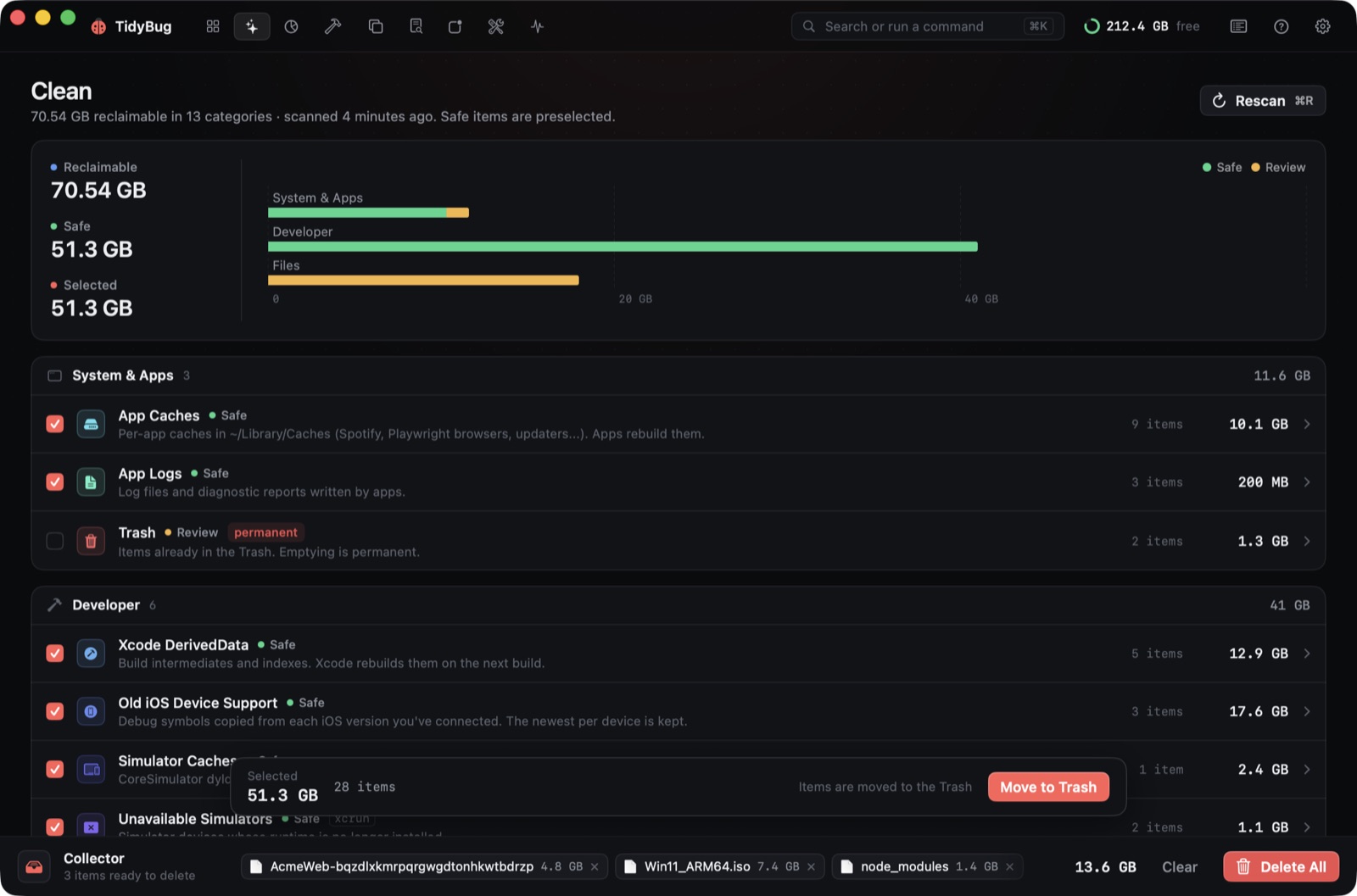 The Collector stages your selections before anything moves, so you can review the combined size.
The menu bar companion
TidyBug adds a menu bar item showing free space, CPU and memory at a glance. One-click "Clean safe items" from the menu bar runs a quick pass over the pre-selected regenerable caches without opening the main window — useful as a regular habit rather than a once-a-year emergency clear-out.
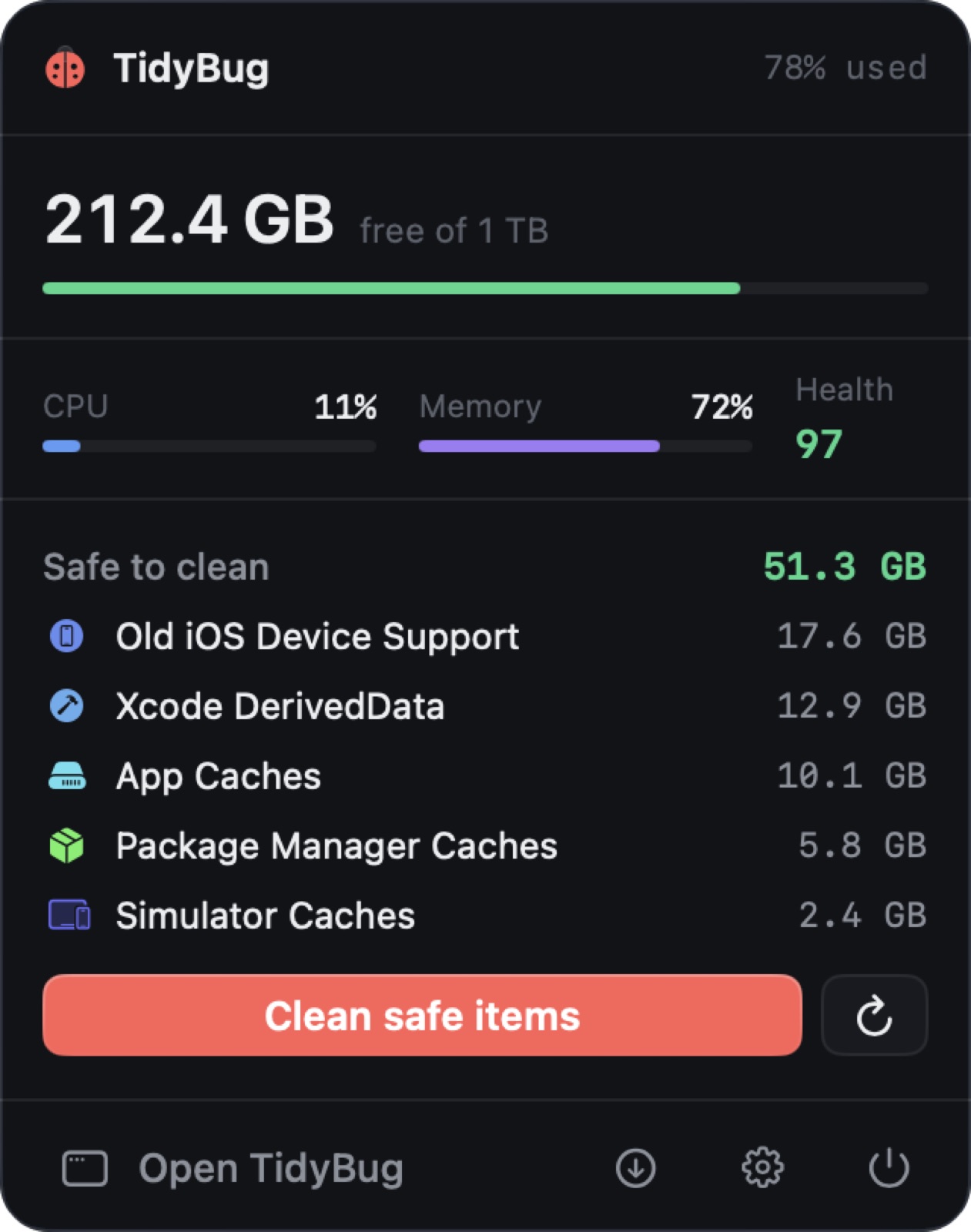 Free space and live stats in the menu bar, with a one-click clean for safe items.
Where to start
If your Mac is running short on space right now:
- Open TidyBug and run Clean — it scans all nineteen locations in parallel and shows what it found, pre-selected by whether it can be regenerated.
- Open Projects and look for old repos with large build folders you no longer need.
- Check Large and old files for installers or archives you downloaded and forgot about.
- If you use Docker or OrbStack, prune unused images and containers from inside those tools first, then let TidyBug pick up the overhead it can identify.
- Review what is selected, move it to the Trash, and empty when satisfied.
TidyBug requires macOS 26 and runs on both Apple silicon and Intel. It is free and open source at tidybug.xeve.io.