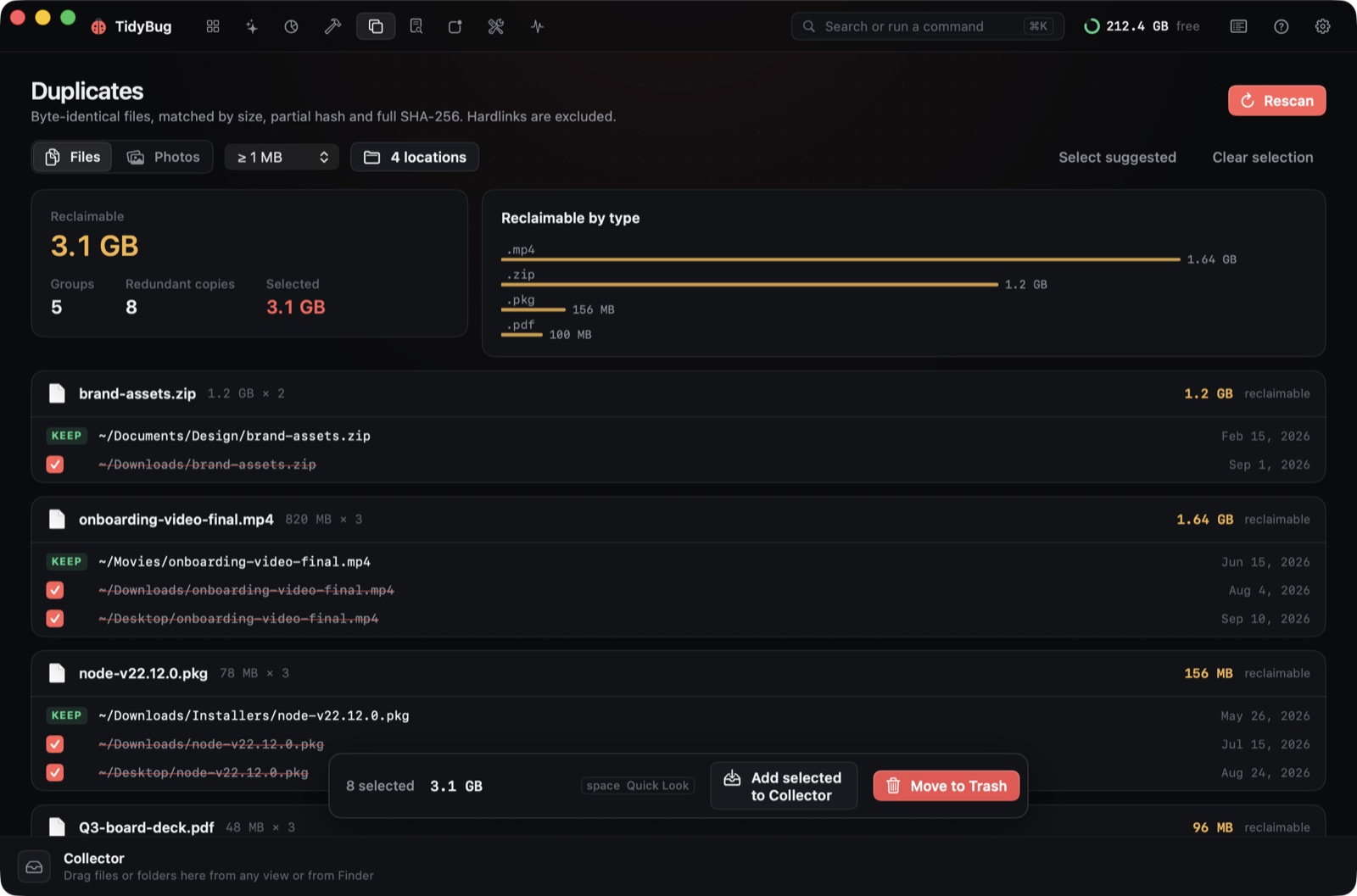
Duplicate files are a slow leak. The same photo exported twice, an installer you downloaded again because you forgot where the first one went, a project folder copied to two external drives "just in case" — each one is a few megabytes, and a few hundred of them are gigabytes you never meant to use.
TidyBug finds them with two methods: SHA-256 hashes for exact byte-for-byte matches, and on-device Vision feature prints for similar photos that look alike but aren't identical bytes.
Finding exact duplicates
The scan starts by grouping files by size. Files with a unique size can't have duplicates, so they're skipped immediately. For everything with a potential match, TidyBug computes a SHA-256 hash — a fingerprint of the file's contents — and groups files that hash the same way.
SHA-256 matches are exact: two files in the same group contain identical bytes, regardless of their names, modification dates or locations. An installer downloaded twice will match. A video in your Movies folder and a copy on your Desktop will match. A library that ended up in two project folders after a reorganisation will match.
The scan is read-only. Nothing moves until you say so.
Finding similar photos
Photos are harder. The same image exported at lower quality, resized for a different purpose, or converted from RAW to JPEG produces a completely different SHA-256 hash. Byte comparison alone would treat those files as unrelated.
TidyBug uses Vision — Apple's on-device image analysis framework — to compute a perceptual fingerprint for each photo and group images that look alike. A RAW file and its JPEG export, two crops of the same shot, a portrait in your Photos library and a copy in a shared album folder: the Vision pass catches what byte comparison misses.
All of this runs on your Mac. Nothing is sent anywhere.
Reviewing what it found
The Duplicates view lists each group with one file suggested as the keeper — typically the one in the more expected location or with the more recent modification date. The rest are marked for removal. You can override the suggestion: select a different file as the one to keep, and the others shift.
Selected items go to the Trash, not to permanent deletion. After the session, you can open the Trash and restore anything that went there by mistake.
TidyBug also handles hardlinks correctly. If you use pnpm, your package store uses hardlinks — one set of files on disk referenced from multiple node_modules trees. TidyBug counts that space once, so you won't see phantom duplicates from a pnpm store and won't overestimate how much removal would recover.
After duplicates: what else to check
Once you've cleared duplicates, the Large Files view is a practical next stop. It filters your disk by size and last-use date, surfacing forgotten ISOs, old video exports, and archives you downloaded once and haven't touched since.
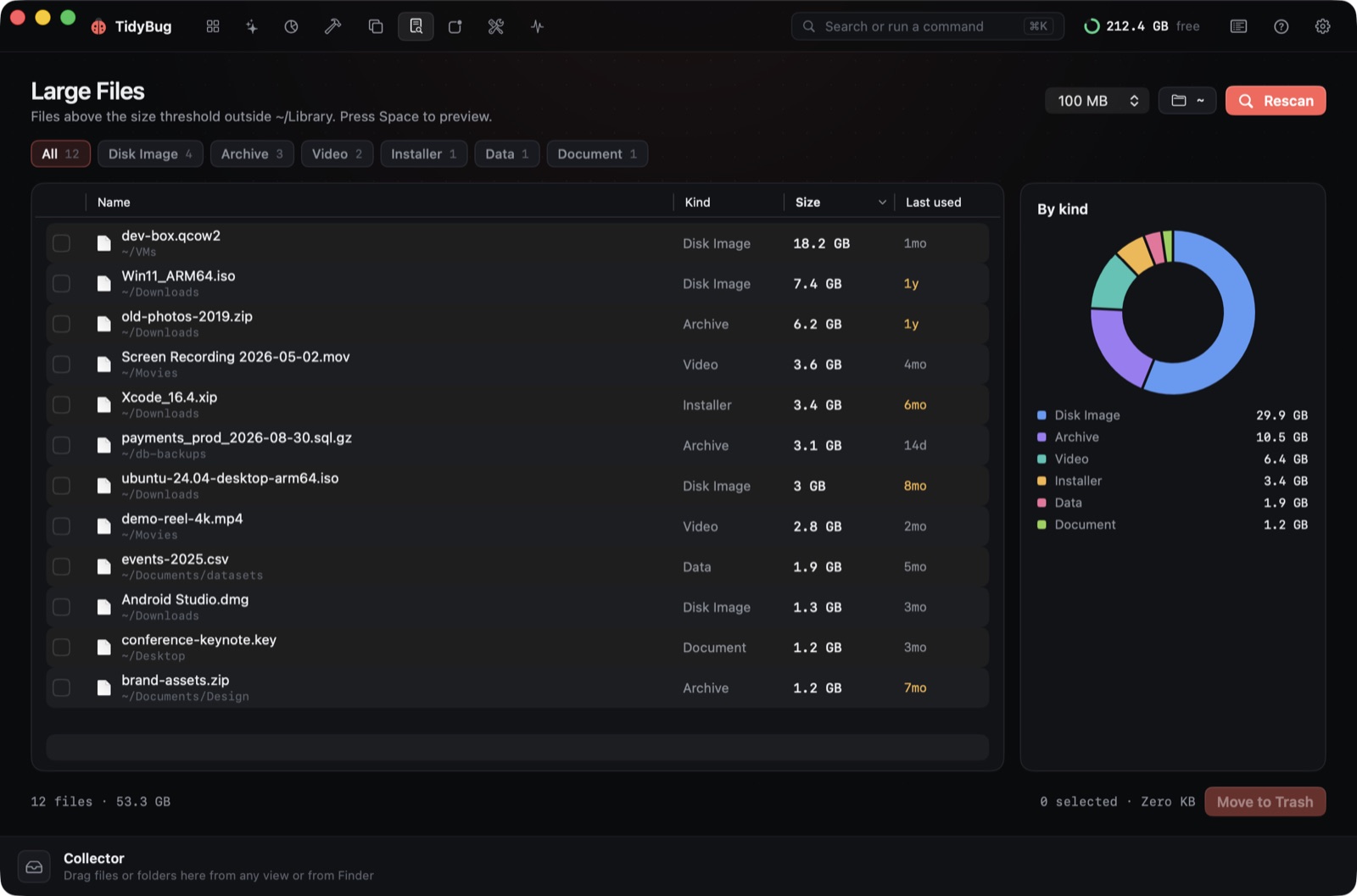 Large & Old Files, filtered by size and last-use date.
The distinction matters: a duplicate is wasted space you can reclaim with confidence. A large, unique file might be important — it might just need a decision. The Large Files view gives you the information to make that call without committing to anything.
What TidyBug won't touch
Protected paths are never surfaced in any scan result: ~/Documents, ~/Desktop, iCloud Drive, Photos libraries, .git folders, ~/.ssh, and signed archives. You can't accidentally stage them for removal, even when an identical copy of a protected file exists somewhere else.
Every removal is logged to ~/Library/Logs/TidyBug/operations.jsonl — a plain JSON file readable in any text editor. If something looks wrong after a session, the log records exactly what was moved and when.
The menu bar companion
If you want a continuous read on disk space without opening the app, TidyBug's menu bar extra shows free space, CPU, memory and a one-click "Clean safe items" button that runs the pre-selected caches from the main scan.
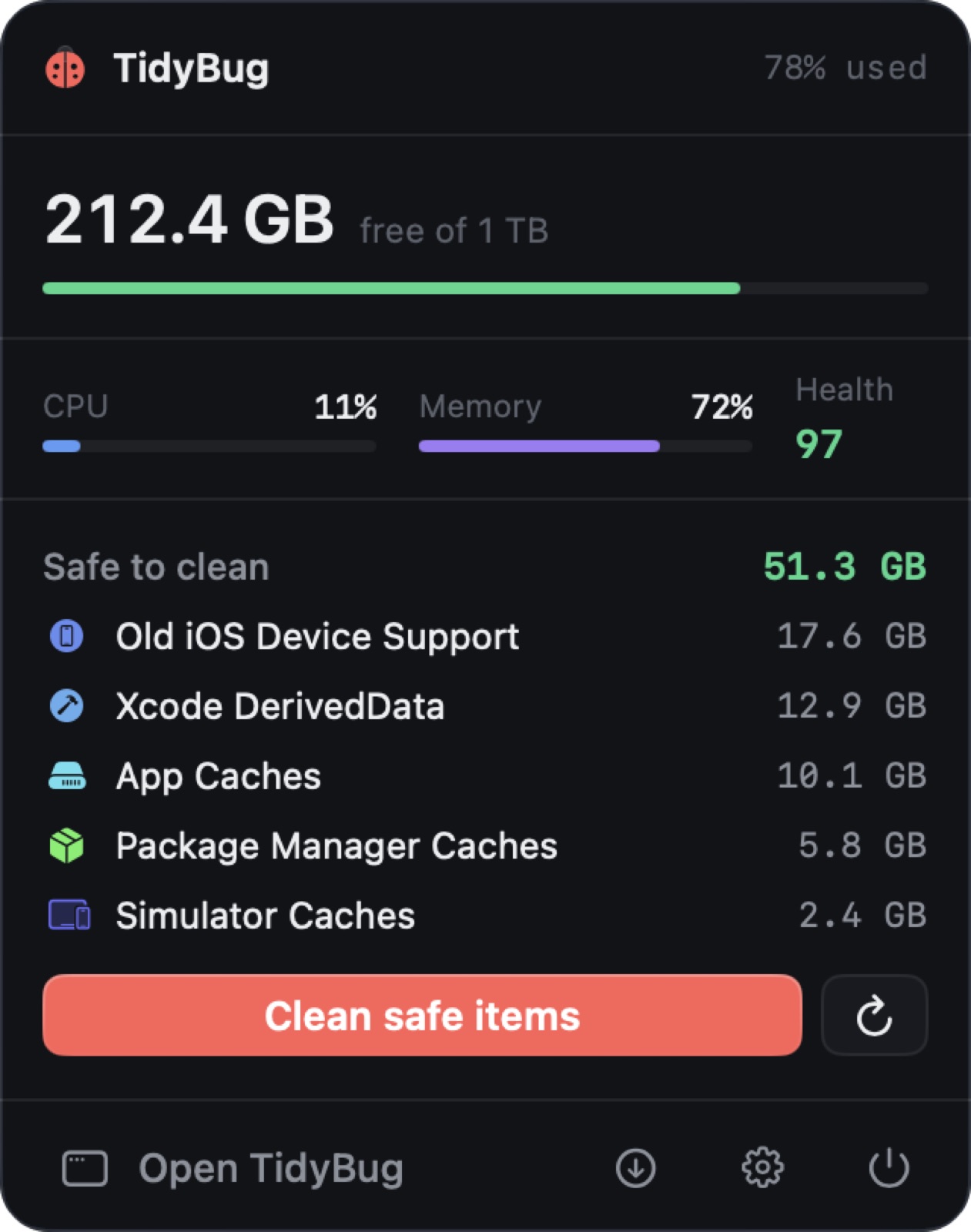 The menu bar extra: free space, CPU and memory at a glance, plus one-click clean.
It's a low-friction way to stay aware of disk headroom throughout the day.
TidyBug is free, open source under GPL-3.0, and runs on macOS 26 on Apple silicon and Intel. The Duplicates scan — both the SHA-256 pass and the Vision pass for similar photos — runs entirely on your Mac.
Download TidyBug or read the code at github.com/xeveio/tidybug.